Product Management / Software Engineering
Beyond Wireframes: Using Draw.io to Simulate the Final Product for Your Clients
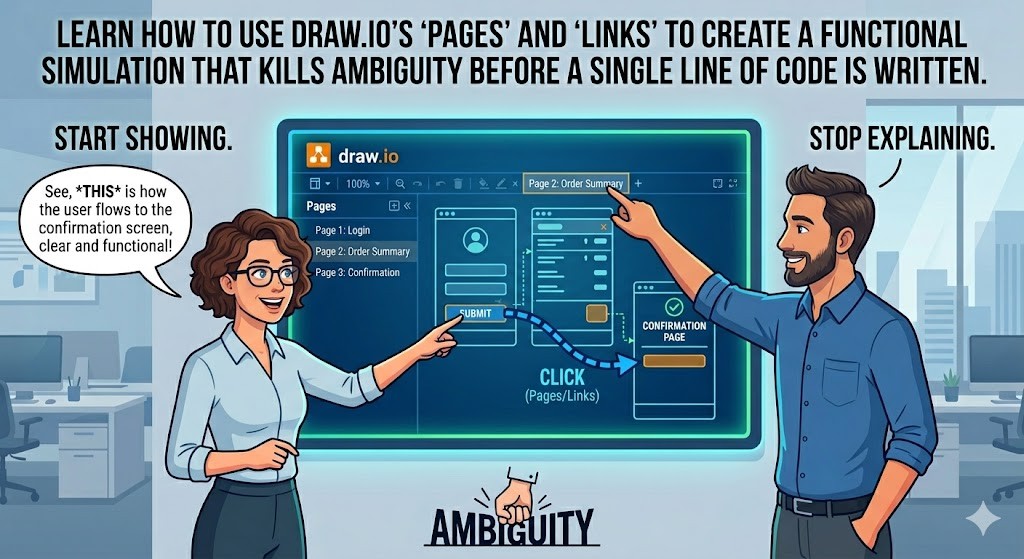
Stop explaining and start showing. Learn how to use Draw.io’s 'Pages' and 'Links' to create a functional simulation that kills ambiguity before a single line of code is written.
Written by

Codehouse Author
The most expensive part of software development isn't the coding—it’s the rework. Most "failed" projects don't fail because of a bug; they fail because the client’s mental model of the product didn't match the developer’s implementation. To solve this, a Draw.io client simulation is one of the most effective, low-cost tools in a senior engineer's arsenal.
While tools like Figma are industry standards for UI/UX designers, they can often be "too much" for a developer who needs to quickly map out logic and user flow. This is where Draw.io (now diagrams.net) shines. It allows you to move beyond static images and provide a functional preview that kills ambiguity before a single line of code is written.
1) The Static Trap vs. Interactive Reality
Static wireframes are dangerous. When you show a client a single PDF of a dashboard, they imagine how it works. You imagine something different. By the time you reach the implementation phase of your Full-Stack Developer Roadmap, those two visions have diverged. A Draw.io client simulation prevents this by making the user journey interactive.
Page Navigation: Use the "Pages" feature in Draw.io to represent different screens or states of the application.
Interactive Links: You can link shapes and buttons to specific pages within the same document. This allows a client to "click" a button and see the next screen, mimicking the actual app behavior.
Mockup Libraries: Draw.io has built-in libraries for Bootstrap, Material Design, and iOS. Use these to give the Draw.io client simulation a professional look without needing a dedicated designer.
2) Building the Simulation: Layers and Logic
A truly effective Draw.io client simulation doesn't just show screens; it shows logic. For a senior developer, this is as important as following a Production API Checklist. You can use "Layers" to show conditional states—like what happens when a user is not logged in vs. when they are.
When presenting, you can toggle these layers to show different scenarios. This "Dynamic Prototyping" helps the client understand the *why* behind the architecture. If a certain feature requires a complex API integration, you can visually represent the "Wait" state or the "Error" state right in the simulation. This manages expectations early and prevents "feature creep" later in the project.
3) The Presentation Strategy: Selling the Vision
When you present a Draw.io client simulation, you aren't just showing a diagram; you are conducting a walkthrough. Start by exporting the Draw.io file as an HTML file or a hosted link. This allows the client to "play" with the simulation on their own time. It builds trust because they can see the progress and the thought process behind the user experience.
This transparency is a hallmark of senior-level engineering. You aren't hiding behind technical jargon; you are using a Draw.io client simulation to speak the client's language. Once the client "clicks through" the entire flow and signs off on it, you have a solid blueprint. Any changes after this point are clearly "Scope Changes," which protects your timeline and your budget.
Conclusion: From Blueprint to Production
Mastering tools like Draw.io is about more than just drawing boxes; it's about mastering communication. In our ReactJS Modern Web Development course, we emphasize that the best code is the code that fulfills a clearly defined need. By starting with a Draw.io client simulation, you ensure that your React components are built for a purpose the client has already approved.
Stop guessing what your clients want. Start simulating the final product today. It will save you hundreds of hours of debugging and rework, and it will establish you as a pragmatic, professional engineer who delivers exactly what was promised.
The most expensive part of software development isn't the coding—it’s the rework. Most "failed" projects don't fail because of a bug; they fail because the client’s mental model of the product didn't match the developer’s implementation. To solve this, a Draw.io client simulation is one of the most effective, low-cost tools in a senior engineer's arsenal.
While tools like Figma are industry standards for UI/UX designers, they can often be "too much" for a developer who needs to quickly map out logic and user flow. This is where Draw.io (now diagrams.net) shines. It allows you to move beyond static images and provide a functional preview that kills ambiguity before a single line of code is written.
1) The Static Trap vs. Interactive Reality
Static wireframes are dangerous. When you show a client a single PDF of a dashboard, they imagine how it works. You imagine something different. By the time you reach the implementation phase of your Full-Stack Developer Roadmap, those two visions have diverged. A Draw.io client simulation prevents this by making the user journey interactive.
Page Navigation: Use the "Pages" feature in Draw.io to represent different screens or states of the application.
Interactive Links: You can link shapes and buttons to specific pages within the same document. This allows a client to "click" a button and see the next screen, mimicking the actual app behavior.
Mockup Libraries: Draw.io has built-in libraries for Bootstrap, Material Design, and iOS. Use these to give the Draw.io client simulation a professional look without needing a dedicated designer.
2) Building the Simulation: Layers and Logic
A truly effective Draw.io client simulation doesn't just show screens; it shows logic. For a senior developer, this is as important as following a Production API Checklist. You can use "Layers" to show conditional states—like what happens when a user is not logged in vs. when they are.
When presenting, you can toggle these layers to show different scenarios. This "Dynamic Prototyping" helps the client understand the *why* behind the architecture. If a certain feature requires a complex API integration, you can visually represent the "Wait" state or the "Error" state right in the simulation. This manages expectations early and prevents "feature creep" later in the project.
3) The Presentation Strategy: Selling the Vision
When you present a Draw.io client simulation, you aren't just showing a diagram; you are conducting a walkthrough. Start by exporting the Draw.io file as an HTML file or a hosted link. This allows the client to "play" with the simulation on their own time. It builds trust because they can see the progress and the thought process behind the user experience.
This transparency is a hallmark of senior-level engineering. You aren't hiding behind technical jargon; you are using a Draw.io client simulation to speak the client's language. Once the client "clicks through" the entire flow and signs off on it, you have a solid blueprint. Any changes after this point are clearly "Scope Changes," which protects your timeline and your budget.
Conclusion: From Blueprint to Production
Mastering tools like Draw.io is about more than just drawing boxes; it's about mastering communication. In our ReactJS Modern Web Development course, we emphasize that the best code is the code that fulfills a clearly defined need. By starting with a Draw.io client simulation, you ensure that your React components are built for a purpose the client has already approved.
Stop guessing what your clients want. Start simulating the final product today. It will save you hundreds of hours of debugging and rework, and it will establish you as a pragmatic, professional engineer who delivers exactly what was promised.